This guide will help you to fix Scarlet revoke issue. Use the scarlet anti revoke DNS or certificate methods below to stop Apple blocking your apps and get your scarlet dns profile set up in minutes.
Quick fix: Install a DNS profile to block Apple’s certificate checks, or import a fresh certificate inside Scarlet. Both methods are covered step by step below.
Quick Checklist — Try This First
Scarlet just broke and you want a one-minute fix. Work through these five steps in order before reading anything else. Most users are back up and running by step three.
- Check the exact error text on screen — note whether it says ‘unable to verify’ or ‘internet connection required’. This tells you which fix to use.
- Delete the old revoked Scarlet profile. Go to Settings > General > VPN & Device Management and remove any old Scarlet or expired developer profiles.
- Install an anti revoke dns profile or set up DNSCloak with the official blacklist file. This is the fastest method for most users.
- Trust the developer. After installing Scarlet, go to Settings > General > VPN & Device Management and tap Trust next to the developer name.
- Import a fresh certificate inside Scarlet, or use eSign if Scarlet still won’t open. Certificate import works when DNS alone is not enough.
Is Scarlet Revoked Right Now?
Run these three quick tests to confirm whether Scarlet is revoked on your device or if something else is causing the problem.
Test 1 — Open Scarlet and read the error.
If Scarlet won’t open at all or shows a popup immediately, the certificate is revoked. Write down the exact error text. The three most common revoke errors are:
| Unable to verify |
| Internet connection is required to verify your apps |
| App integrity cannot be verified |
Test 2 — Try a fresh IPA install.
Open Scarlet and try to install any IPA file. If the install starts but the app immediately shows an error when you open it, the signing certificate has been revoked by Apple.
Test 3 — Run a network test.
Open Safari and go to ppq.apple.com. If the page loads normally, your internet is fine and the problem is the certificate. If the page is blocked or times out, a DNS filter may already be running — check Settings > General > VPN & Device Management for any active profiles.
If any of these tests points to a revoke, jump to the Troubleshooting section below or start with Method 1.
What is Scarlet Anti-Revoke?
Anti-revoke is a method that stops Apple from checking whether a Scarlet certificate is still valid. Every app installed outside the App Store relies on a developer or enterprise certificate. Apple periodically contacts its own verification servers to confirm those certificates are still active. When Apple revokes a certificate, those checks fail and your apps stop working.
An anti revoke profile or anti revoke ios tool intercepts that verification check. It either blocks the request at the DNS level or redirects it so the check never completes. The result is that Scarlet and its sideloaded apps keep running even after Apple has blacklisted the certificate.
Anti-revoke does not bypass jailbreak restrictions. It works on standard, non-jailbroken iPhones and iPads running supported iOS versions.
How Scarlet Anti-Revoke Works
When you open Scarlet ios or a sideloaded app, iOS sends a silent request to Apple’s verification endpoint to check the signing certificate. That endpoint is on Apple’s servers. If Apple has revoked the certificate, the server returns a revocation status and iOS blocks the app from running.
DNS anti revoke ios tools work by intercepting that DNS lookup. Here is the sequence:
- Your device asks the DNS server to resolve Apple’s verification endpoint address.
- The anti revoke dns profile or DNSCloak blacklist intercepts that specific lookup.
- The lookup either returns a blocked result or no result at all.
- iOS never receives a valid revocation signal.
- The app continues to run as if the certificate is still valid.
This is why the method is called DNS-level anti-revoke. It does not change the certificate itself. It prevents the revocation check from completing.
- There is an important limitation. Apple can and does update its verification endpoints. When Apple changes the domain names or IP addresses involved, an older blacklist file may stop working. This means the anti-revoke method needs to be kept updated. If your fix suddenly stops working after an iOS update or after a few weeks, the blacklist file is the first thing to refresh.
- A second limitation: to verify and install new Scarlet apps you will sometimes need to temporarily disable the anti-revoke connection. This is expected behaviour, not a bug.
Why Does Scarlet Get Revoked?
Scarlet uses enterprise certificates to sign and distribute apps outside the App Store. Enterprise certificates are issued by Apple to businesses for internal software distribution, not for public app stores. When Apple detects that an enterprise certificate is being used to distribute apps to large numbers of unaffiliated users, it revokes that certificate.
Scarlet ios uses enterprise certificates because they allow any device to install apps without being registered in a developer account. That convenience is exactly what makes them a target. Apple monitors activation patterns. A certificate that suddenly appears on tens of thousands of devices triggers an automatic review.
Scarlet ios certificate revokes follow a predictable cycle. A new certificate is issued, distributed, gains a large user base, gets flagged by Apple, and is revoked. The cycle repeats. This is why Scarlet and tools like it rotate certificates regularly and why the Telegram group is the fastest source for working links.
Apple also performs periodic certificate rotation on its own infrastructure, which can disrupt DNS-based workarounds even when the Scarlet certificate itself is still technically valid.
Legal note: Bypassing Apple’s certificate verification may violate Apple’s terms of service. Use these methods at your own discretion and remove any profiles you no longer need.
Error Messages Explained
If Scarlet is revoked, iOS will show one of these error messages. Each error points to a slightly different cause and fix. Find your error below and follow the recommended next step.
| Error Message | What It Means | Next Step |
| Unable to verify | The certificate is revoked or Apple’s check returned a failure. The most common revoke error. | Start with Method 1 — DNSCloak. If it persists, try Method 3 — Certificate Import. |
| Internet connection is required to verify your apps | iOS tried to contact Apple’s verification server and failed. Can happen when DNS is active and blocking the check correctly, or when you genuinely have no connection. | Check your internet first. If connection is fine, this means DNS is working. Proceed to install Scarlet using a fresh link from Telegram. |
| App integrity cannot be verified | The app binary or signature has been tampered with or the certificate is no longer recognised. | Delete the app fully. Re-download a fresh IPA from an official source and reinstall. |
| Profile not found | The DNS or developer profile was removed, expired, or was never installed on this device. | Go to Settings > General > VPN & Device Management. Reinstall the profile from the official source. |
How to Fix Revoked Scarlet
Before you use any of the methods below, do this cleanup step. Skipping it causes install loops where Scarlet appears to install but immediately fails again. This takes two minutes and saves a lot of frustration.
- Open Settings on your iPhone or iPad.
- Go to General > VPN & Device Management.
- Look for any profile named Scarlet, or any developer profile associated with a previous Scarlet install. Tap it.
- Tap Remove Profile or Delete Profile and confirm. Do this for every old Scarlet-related profile you see.
- Go back to General > Device Management and remove any expired or unknown certificates.
- Restart your device. This clears any cached certificate state.
| ✅ Verification: After restarting, go back to Settings > General > VPN & Device Management. If you see no Scarlet profiles listed, the cleanup is complete and you are ready to proceed. |
| ⚠️ Safety note: If you have data saved inside any sideloaded apps, back it up before removing profiles. Removing a profile can make associated apps stop working until they are reinstalled. |
Method 1 — DNSCloak Anti-Revoke (Recommended)
This is the method used by the official Scarlet documentation and the most reliable option for most users. DNSCloak is a free app that lets you load a custom DNS blacklist. That blacklist contains Apple’s certificate verification domains. When DNSCloak is running with the Scarlet blacklist loaded, iOS cannot complete the revoke check and Scarlet keeps working.
Step 1: Install DNSCloak from the App Store.
Search for DNSCloak – Secure DNS Client on the App Store or use this direct link: https://apps.apple.com/us/app/dns-cloak-secure-vpn-proxy/id6468986859. Install it like any normal app. No special permissions are needed during install.
Step 2: Select a DNS server.
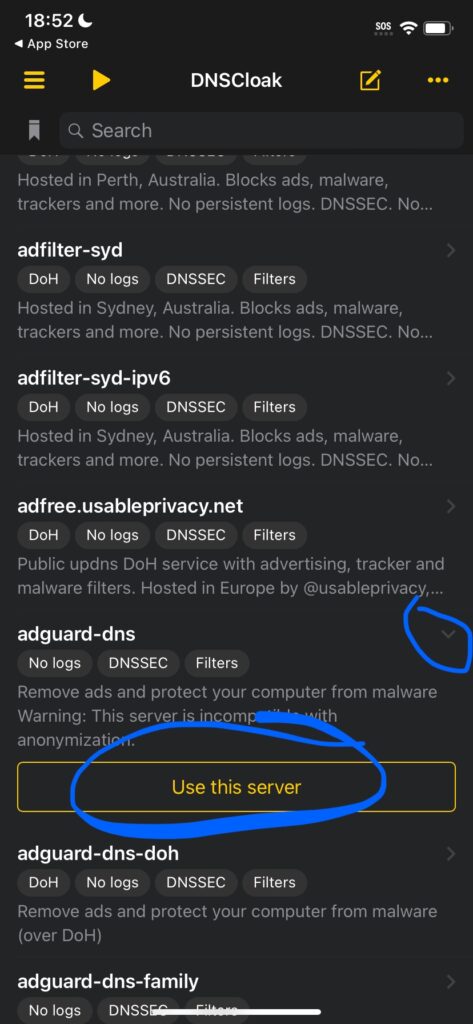
Open DNSCloak. You will see a list of DNS server options on the main screen. Any of the listed servers will work. Tap one to select it and then tap Use This Server. The app will confirm your selection.
Step 3: Enable Connect on Demand.
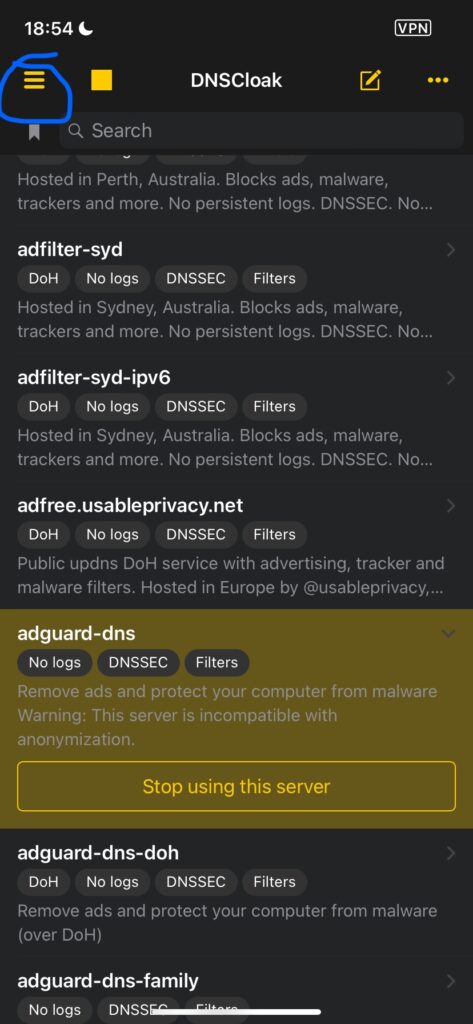
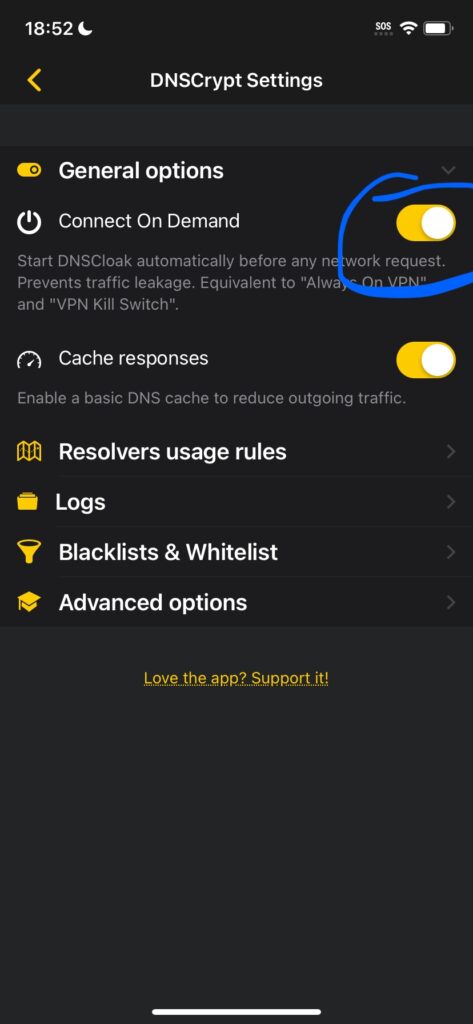
Tap the three-line menu icon in the top left corner of DNSCloak. Find the option labelled Connect on Demand and turn it on. This is the most important setting. Without it, DNSCloak stops filtering when your phone restarts or when you close the app. With it on, the DNS filter re-enables automatically every time your device connects to the internet.
Step 4: Import the blacklist file.
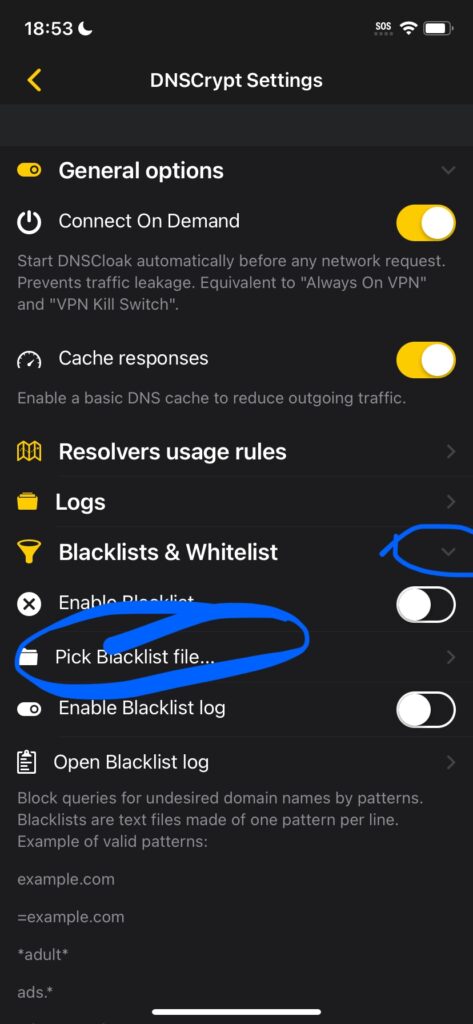
Tap Pick Blacklist File inside the DNSCloak settings. You need to import the official Scarlet blacklist file. Download it from https://scarletiosdownload.com/downloads/blacklist.txt and save it to your Files app. Then return to DNSCloak and select that file from Files. DNSCloak will load the blacklist and begin filtering those domains.
Step 5: Verify the filter is active.
Open Safari and navigate to ppq.apple.com. If the page fails to load or times out, the DNS filter is working correctly. That domain is one of Apple’s certificate verification endpoints. A failed load means DNSCloak is blocking it as expected.
Known pitfalls:
- If Scarlet still shows ‘unable to verify’ after setup, restart your device and reopen DNSCloak to confirm Connect on Demand is still active.
- If you update iOS, check DNSCloak after the update. System updates sometimes reset VPN and DNS configurations.
- To install a new IPA, you may need to temporarily disable DNSCloak. Turn it off, install the IPA, trust the developer, then re-enable DNSCloak.
- If the blacklist file link stops working, download a fresh copy from the official Scarlet Telegram group.
Method 2 — Scarlet DNS Profile
The Scarlet DNS Profile is a mobile configuration file that installs a DNS filter directly into iOS without needing a third-party app. It works similarly to DNSCloak but is installed as a native iOS profile. This method is fast to set up and works well on devices where App Store access is restricted.
Where to get the DNS profile:
The scarlet dns profile download is available through the official Scarlet Telegram group. Do not download it from unofficial websites or random links shared in forums. Only use links posted by verified admins in the official group. Using an unverified profile is a security risk because profiles have system-level access to your device’s DNS.
Step 1 — Get the profile link.
Open Telegram and join the official Scarlet group. Scroll to the pinned messages or search the group for ‘DNS profile’. The admin will have posted a current working link. Tap the link on your iPhone. Safari will open and prompt you to download a configuration profile.
Step 2 — Install the profile.
After tapping the link, iOS will show a message saying ‘This website is trying to download a configuration profile. Do you want to allow this?’ Tap Allow. Then go to Settings. You will see a notification at the top saying Profile Downloaded. Tap it, then tap Install, enter your device passcode, and tap Install again to confirm.
Step 3 — Verify the DNS is active.
After installing, go to Settings > General > VPN & Device Management. You should see the Scarlet DNS profile listed there and marked as active. Open Safari and try loading ppq.apple.com. If it fails to load, the profile is working.
Step 4 — Install Scarlet.
Return to the Telegram group and download a current Scarlet IPA link. Open it on your iPhone. The install should complete without a revoke error. Trust the developer profile when prompted.
Troubleshooting — if the profile fails to install:
- If iOS shows ‘Unable to download profile’, the link may have expired. Return to Telegram and try the next available link posted by an admin.
- If the profile installs but Scarlet still shows an error, delete the profile and reinstall it. Sometimes a partial install causes problems.
- If you see ‘Profile not signed’, this means the profile came from an unofficial source. Remove it immediately and use only verified Telegram links.
Method 3 — Certificate Import Inside Scarlet
Certificate import is the right method when DNS alone is not fixing the problem, or when you want to sideload apps using a different certificate than the one Scarlet ships with. Instead of blocking Apple’s revoke check at the DNS level, you are replacing the revoked certificate with a fresh working one directly inside Scarlet.
Use this method if Method 1 and Method 2 installed without errors but apps still stop working after a day or two. That pattern usually means the base certificate Scarlet is using has been revoked, and the DNS is not enough on its own.
Step 1 — Download the certificate file.
Join the official Scarlet Telegram group. Admins post current certificate zip files there. Download the zip file. Save it to your Files app, not your Photos app. The file is a zip archive and you need to unzip it in the next step.
Step 2 — Unzip the file.
Open the Files app. Find the downloaded zip. Tap and hold it and select Uncompress. iOS will extract the certificate files into the same folder. You should see a .p12 file and possibly a .mobileprovision file after extraction.
Step 3 — Open Manage Certificates in Scarlet.
Open Scarlet. Tap the Settings or Tools section depending on your Scarlet version. Find and tap Manage Certificates. This is the section where Scarlet stores the signing certificates it uses when installing IPA files.
Step 4 — Upload the certificate.
Tap Upload or Import Certificate. Navigate to the Files app location where you extracted the zip. Select the .p12 file. Scarlet will ask for the certificate password. The password is posted alongside the download link in the Telegram group. Enter it exactly as shown — passwords are case-sensitive.
Step 5 — Test the certificate.
Try installing an IPA file through Scarlet. If the install completes and the app opens without a verify error, the certificate is working. Scarlet ios ipa installer certificate revokes should no longer appear.
| 🔒 Security note: Do not share the certificate password with others and do not post it publicly. Certificate passwords are rotated regularly. Sharing them accelerates revocation and breaks the fix for everyone using that certificate. |
Only use certificates from official, community-verified sources. A malicious certificate can be used to sign harmful apps. If a source asks you to pay for a certificate, use a different source.
Method 4 — eSign Alternative
eSign is a free web-based app signing service. It lets you sign IPA files with a fresh certificate and install them directly on your device without needing Scarlet at all. If Scarlet itself is broken and you cannot get it working, eSign is the fastest fallback.
eSign works by providing its own signing certificates which rotate more frequently than Scarlet’s. This makes it less likely to be revoked at any given moment. The trade-off is that signed apps typically expire after 7 days on a free account, so you will need to re-sign periodically.
Step 1 — Install eSign.
Go to the official eSign website on your iPhone. The install link is a web clip or a direct IPA link depending on the current version. Install it as you would any sideloaded app — follow the prompts and trust the developer profile when iOS asks.
Step 2 — Sign your IPA.
Open eSign. Tap the plus icon to add an IPA file. You can import it from Files or paste a direct download link. eSign will sign the IPA using its current certificate. The signing process usually takes under a minute.
Step 3 — Install the signed app.
After signing, eSign will show an Install button. Tap it. iOS will prompt you to trust the developer profile. Go to Settings > General > VPN & Device Management, find the eSign developer name, and tap Trust. Return to eSign and your app should open normally.
Step 4 — Renewal.
Free eSign certificates expire after 7 days. You will need to return to eSign and re-sign the IPA to continue using the app after expiry. Some premium plans offer longer certificate validity — check the eSign site for current options.
Pros: Free to use. No Scarlet required. Certificates rotate frequently so revokes are less common. Works as a complete scarlet alternative.
Cons: Apps expire after 7 days on free plan. Requires re-signing regularly. Availability depends on eSign’s own certificate status, which can also be revoked.
Method 5 — Skibidi DNS Anti-Revoke
Skibidi DNS is a community-maintained DNS filtering tool that works as an alternative to DNSCloak for iOS anti-revoke. It uses a similar approach — blocking Apple’s certificate verification domains at the DNS level — but is maintained independently of the official Scarlet project.
Because it is community-maintained, the blacklist file may be updated at different times than the official Scarlet blacklist. Some users prefer it as a backup when the DNSCloak blacklist is slow to update after an Apple endpoint change.
Step 1 — Find the official source.
Only use Skibidi DNS links from verified community sources such as the official Scarlet Telegram group or trusted community forums with active moderation. Do not install DNS profiles from unverified links shared in general chats or social media. An unverified DNS profile has system-level access to your network traffic.
Step 2 — Install the DNS profile.
Tap the verified link on your iPhone. Safari will prompt you to allow a profile download. Accept, then go to Settings > Profile Downloaded > Install. Enter your passcode and confirm installation.
Step 3 — Verify it is active.
Go to Settings > General > VPN & Device Management. Confirm the Skibidi DNS profile is listed and active. Test in Safari by opening ppq.apple.com. A failed load confirms the anti revoke dns is working.
Step 4 — Keep it updated.
Check the source community for blacklist updates, especially after iOS updates. Remove and reinstall the profile if Scarlet revokes resume after a period of working correctly.
How to Verify the Fix Worked
Do not assume the fix worked just because no error appeared during setup. Run these checks to confirm Scarlet unrevoked status before relying on it.
- Install a known IPA file through Scarlet. Use a small, simple app. If it installs and opens without any error popup, the certificate and DNS are working.
- Open the installed app a second time after locking and unlocking your phone. A revoked app sometimes opens once from cache and fails on the second open.
- Check the DNS is active. Open Safari and go to ppq.apple.com — it should fail to load. Then go to google.com — it should load normally. This confirms the filter is targeting only Apple’s verification domains and not breaking general browsing.
- Restart your device and retest. Reopen Scarlet and the installed app. If everything still works after a restart, the fix is stable. If it breaks after restart, Connect on Demand is not enabled — go back to Method 1, Step 3.
iOS Version Compatibility
The DNS and certificate methods described in this guide have been tested across multiple iOS versions. The table below reflects community-reported results. Entries marked anecdotal are based on user reports rather than controlled testing.
| iOS Version | Expected Behaviour | Notes |
| iOS 14 | Full compatibility. All methods work as described. | Tested. DNS profile and DNSCloak both stable on 14.x. |
| iOS 15 | Full compatibility. Recommended version for Scarlet stability. | Tested. Most stable combination of Scarlet + anti revoke ios tools. |
| iOS 16 | Good compatibility. Minor DNS reset issues reported after updates. | Mostly tested. Re-enable Connect on Demand after any iOS update. |
| iOS 17 | Mostly compatible. Anti revoke ios 17 works with updated blacklist. | Anecdotal. Some users report needing to reinstall profiles after 17.x updates. |
| iOS 18 | Partial. Certificate method more reliable than DNS on 18.x. | Anecdotal. Apple tightened profile restrictions in iOS 18. Test both methods. |
| iOS 18+ future | Unknown. Methods may need updates after major Apple changes. | Use conservative expectations. Check the Telegram group for current status. |
If your iOS version is not listed or you are on a beta release, use the certificate import method as your first attempt since it is less dependent on DNS layer access than the profile-based methods.
Is This Safe?
These are the most common safety questions about Scarlet and anti-revoke methods. Read this before installing anything.
No jailbreak required. All methods in this guide work on standard, non-jailbroken iPhones and iPads. You do not need to modify iOS at the system level.
DNS profiles can see your hostnames. A DNS profile does not encrypt your traffic or read your passwords, but it does see the domain names your device contacts. Only install profiles from sources you trust. Remove any profile you no longer use.
Avoid unknown IPA sources. The anti-revoke methods make it easier to install apps. That also means it is easier to install a malicious app by accident. Only install IPAs from sources you recognise and trust.
Legal note. Installing apps outside the App Store and bypassing Apple’s certificate checks may violate Apple’s Developer Program License Agreement and Terms of Service. This varies by region. Use these methods at your own discretion.
Remove profiles when not needed. If you stop using Scarlet, go to Settings > General > VPN & Device Management and remove all associated profiles. This reduces your device’s attack surface and prevents any background DNS filtering from continuing unnecessarily.
You can also checkout complete guide here > Is Scarlet iOS safe?
Troubleshooting
Scarlet installs but will not open
- Check the error message. If it says ‘unable to verify’ or ‘revoked scarlet’, the certificate has been revoked. The DNS fix is not active or is not working.
- Go to Settings > General > VPN & Device Management. Confirm your DNS profile or DNSCloak VPN is listed and active. If it is missing, reinstall it from the official source.
- Delete Scarlet and reinstall. Do not just update — fully delete the app and the associated profile first, then follow the cleanup step at the top of this guide before reinstalling.
Final fallback: If Scarlet keeps failing to open, switch to the certificate import method (Method 3) instead of relying solely on DNS.
DNS installed but revoke persists
- Check that Connect on Demand is enabled in DNSCloak. This is the most common cause of DNS reverts after a restart.
- Download a fresh blacklist file. The existing blacklist may be outdated. Apple changes its verification endpoints and an old blacklist will miss new domains.
- Check for a conflicting VPN. If you have another VPN or DNS profile active alongside DNSCloak, they may be competing. Disable all other VPN or DNS profiles and test with only DNSCloak running.
Final fallback: If the DNS method keeps failing, use the certificate import method which does not depend on DNS filtering at all.
Developer trust not visible
- Restart your device. Sometimes the Trust option only appears after a reboot.
- Make sure Scarlet is installed. The developer trust option only appears in VPN & Device Management after an app from that developer has been installed on the device.
- Check iOS version. On iOS 16 and above, the trust option is inside Settings > General > VPN & Device Management rather than the older Profiles menu location. Look carefully through the full list.
Final fallback: If the developer name does not appear at all, the certificate may not have installed correctly. Delete the app, reinstall from a fresh link, and look again immediately after install.
Certificate import fails
- Confirm the password is correct. Passwords are case-sensitive and may include special characters. Copy and paste from the Telegram post rather than typing manually.
- Check the file format. Scarlet requires a .p12 file. If you see a .pem or .cer file after unzipping, that is a different format and will not work. Download the correct zip from the official source.
- Ensure the zip is fully extracted before importing. If you try to import a file that is still inside a zip archive, Scarlet cannot read it.
Final fallback: If certificate import consistently fails, join the Scarlet Telegram group and ask an admin for a current working certificate package. Certificate formats and sources are updated regularly.
FAQ
Is it safe to use Scarlet?
Scarlet is widely used in the iOS sideloading community. No jailbreak is required. The main risks are installing untrusted IPAs and installing DNS profiles from unofficial sources. Use only official sources and remove profiles you no longer need. There is a legal consideration too — using enterprise certificates outside their intended purpose may violate Apple’s terms of service.
Does Scarlet require a jailbreak?
No. Scarlet works on standard non-jailbroken iPhones and iPads. All the anti-revoke methods in this guide, including DNS profiles and certificate import, are available on stock iOS without any system modifications.
Which iOS versions does anti-revoke work on?
Anti-revoke methods work on iOS 14 through iOS 17 with good reliability. iOS 18 has partial compatibility, with the certificate method being more stable than DNS on that version. See the iOS Version Compatibility table above for details.
What if the DNS method stops working?
The most common cause is an outdated blacklist file. Apple changes its verification endpoints periodically and an old blacklist will miss them. Download a fresh blacklist from the official Scarlet Telegram group and re-import it into DNSCloak. If the problem continues, switch to the certificate import method.
How do I remove all Scarlet profiles from my device?
Go to Settings > General > VPN & Device Management. You will see all installed profiles and certificates. Tap each Scarlet-related entry and select Remove Profile or Delete. Restart your device after removing all profiles to clear any cached state.
What is ScarletCloud?
ScarletCloud is an associated service connected to the Scarlet ecosystem. It provides cloud-based features alongside the core Scarlet app. Check the official Scarlet documentation or Telegram group for the most current information about what ScarletCloud offers, as features are updated regularly.
How often do certificates expire or get revoked?
There is no fixed schedule. Apple revokes certificates when it detects misuse, which can happen days or weeks after a certificate is distributed. The Scarlet Telegram group is the fastest place to get working replacement links. Certificates used by a large number of devices tend to get revoked faster than newer, less-distributed ones.
Can I use AltStore instead of Scarlet?
Yes. AltStore is a legitimate alternative for sideloading apps on iOS. It works differently from Scarlet — it uses your personal Apple ID to sign apps rather than enterprise certificates, which means apps are less likely to be mass-revoked. The trade-off is that AltStore requires a computer with iTunes or Finder to refresh app signatures every 7 days, or a paid AltStore+ subscription for server-based refresh. For users who want a more stable long-term option, AltStore is worth considering.
Conclusion
Scarlet anti-revoke is not complicated once you understand the pattern. Apple revokes certificates, DNS methods intercept the verification check, and certificate import replaces the revoked certificate directly. Fix the immediate problem, then set up Connect on Demand so it does not keep happening.
Final three steps before you close this page:
- Set up DNSCloak with Connect on Demand enabled. This is your long-term protection.
- Save the Telegram group link. When a certificate expires, the group is the fastest source for a working replacement.
- Bookmark this page. Methods need updating after iOS updates and Apple endpoint changes.